
TL;DR: Accessible eLearning isn’t a costly extra — it’s easier and smarter than most SMBs assume, and it improves the experience for everyone. Build to WCAG 2.1 AA using the POUR principles (perceivable, operable, understandable, robust), and you protect yourself legally while reaching the 20% of users who have a disability. The bonus: when one client added captions purely for compliance, 70% of viewers preferred watching with them on.
Creating an eLearning course is one thing. Making it accessible to everyone—regardless of ability—is where real impact happens. Most small-to-mid-sized businesses overlook this, not out of neglect, but because accessibility seems technical, expensive, or overwhelming.
But here’s the truth: building accessible eLearning is easier (and smarter) than most think.
Why eLearning Accessibility Matters for SMBs
You might think accessibility is just a “nice-to-have.” It’s not. It’s essential—for legal protection, user reach, and inclusivity.
- 20% of users have a disability affecting how they interact with content.
- Non-compliance with WCAG opens your company to lawsuits.
- Accessible design improves UX for all users—not just those with disabilities.

Hypothetical Example
One SMB client added captions to their training videos just for accessibility. Turns out, 70% of users preferred watching videos with captions. Why? Noisy environments. Multitasking. Learning preferences.
Accessible eLearning design benefits everyone—not just those with disabilities.
WCAG Guidelines for eLearning: What You Need to Know
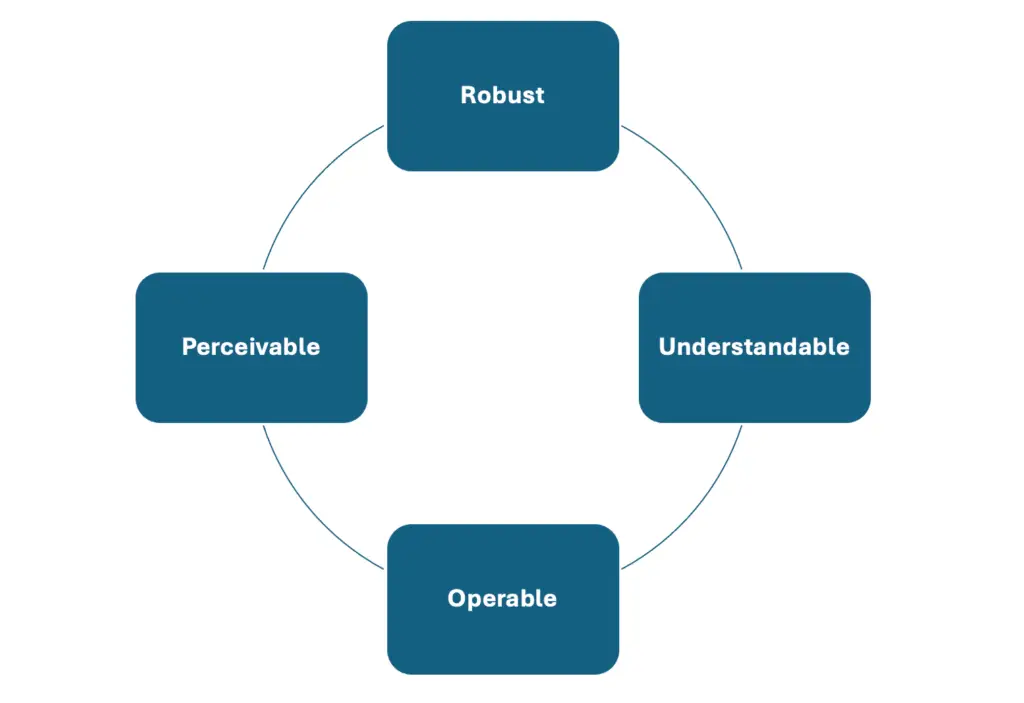
To make your eLearning course accessible, follow WCAG 2.1 Level AA standards. Here’s a breakdown:
POUR Principles:
- Perceivable – Can users see or hear your content? (e.g., alt text, captions)
- Operable – Can they navigate it easily? (e.g., keyboard-friendly design)
- Understandable – Is it clear and readable? (e.g., plain language)
- Robust – Will it work with assistive tech like screen readers?
Quick Tip: Start with a free audit using WAVE.
Step-by-Step: Accessible eLearning Course Design
Step 1: Use Clear, High-Contrast Visuals
- Avoid low-contrast text on coloured backgrounds.
- Use readable fonts: Arial, Verdana, or Open Sans.
Step 2: Add Alt Text to All Images
- Describe content purposefully: “Man using screen reader at desk” > “Image1.jpg”.
Step 3: Caption All Audio and Video
- Provide closed captions for all spoken content.
- Offer text transcripts for audio-only media.
Step 4: Make Navigation Keyboard-Friendly
- All actions should be doable with a keyboard.
- Include focus states and logical tab order.
Step 5: Write in Plain Language
- Short sentences.
- One idea per paragraph.
- Avoid jargon.
Step 6: Test with Assistive Technology
- Try NVDA, VoiceOver, and WebAIM’s contrast checker.
How Accessibility Impacts Learning Outcomes
Accessibility improves actual results:
- Higher engagement: Simplified UI benefits all.
- Better retention: Multimodal content supports different learning styles.
- Fewer drop-offs: Frustration leads to abandonment—accessible design keeps users learning.
Courses aligned with WCAG see an 18% average boost in completion rates (eLearning Industry, 2023).
Tools & Resources to Streamline Accessible eLearning Design
Testing Tools
- WAVE – visual accessibility audit
- axe DevTools – developer plugin
- NVDA/VoiceOver – real-user screen reader testing
Content Tools
- Descript – captions and video transcription
- Otter.ai – accurate audio transcription
- Grammarly – plain language and clarity
LMS with Built-in Features
- LearnDash, Moodle, TalentLMS – each supports alt text, keyboard nav, and captioning.
Quick Wins for SMBs
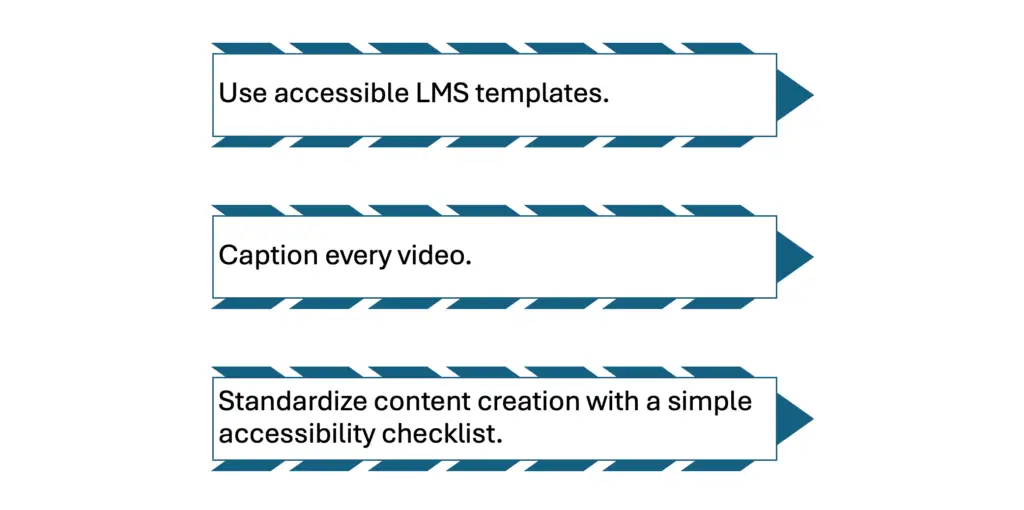
- Use accessible LMS templates.
- Caption every video.
- Standardize content creation with a simple accessibility checklist.
Train content creators with a 1-hour internal webinar to avoid bottlenecks.
Common Accessibility Mistakes (and Fixes)
- Mistake: Using colour alone to indicate status
Fix: Combine colours with icons or text labels. - Mistake: Skipping keyboard testing
Fix: Tab through your modules regularly. - Mistake: Ignoring mobile accessibility
Fix: Use responsive design and check font sizes. - Mistake: Auto-playing audio
Fix: Let learners press “play” themselves.
Best Practices for Long-Term Accessibility
- Document your accessibility standards.
- Include users with disabilities in course testing.
- Audit every 12 months (or after each update).
- Stay aligned with evolving legal standards: ADA, AODA, EN 301 549.
Expanded Case Study: A Small Manufacturer Goes Inclusive
A small industrial manufacturer in Ohio launched digital onboarding without realising accessibility gaps. A legally blind employee couldn’t complete the course. They turned to Watts Digital for help.
In 6 weeks, we:
- Rebuilt modules using accessible templates
- Added voiceover and tactile printable diagrams
- Redesigned quizzes with ARIA labels
Outcome: The employee completed training, retention improved company-wide, and the employer brand became more inclusive.
Legal & Compliance Risks
United States
- ADA Title I: Equal access for employees.
- Section 508: WCAG compliance for government-related vendors.
Canada
- AODA: Requires accessibility for companies with 50+ staff.
Europe
- EN 301 549: Mandatory WCAG standards for public-sector organisations.
Risks of non-compliance:
- Lawsuits
- Lost government contracts
- Damaged reputation
Bonus Tips to Make Your Courses Stand Out
- Add narration with adjustable speed.
- Offer dark/light mode toggle.
- Include progress indicators and feedback buttons.
- Let users bookmark sections or save progress.
FAQ: eLearning Accessibility for SMBs
What’s the fastest way to improve accessibility?
dd captions and alt text. These two things deliver 80% of the impact.
Do I need to follow WCAG for internal training?
If you’re a public-sector vendor or want to retain all talent, yes. It’s best practice either way.
Can AI tools help with accessibility?
Yes. Tools like Descript, Scribe, and Otter.ai streamline captioning and transcription.
How often should I audit for accessibility?
t least annually—or after any significant course update.
Where can I get a checklist?
Right here 👇 Download our eLearning Accessibility Compliance Guide for SMBs.
Related reading
- Elearning Course Design South Africa: Master 2
- Measuring eLearning ROI in South Africa: A 202
- WordPress LMS Comparison South Africa: The 202
- How to Create a SETA Accredited Online Course:
Ready to put this into action?
If you’d rather have a team that does this every day, we’re here. Book a free 20-minute consult and we’ll give you the three highest-impact next steps for your business — no obligation.